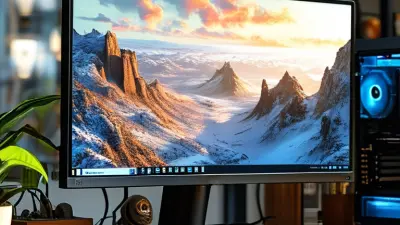
Choosing a 27 Inch QHD Gaming Monitor can feel surprisingly complicated. Many models share similar specifications, yet their real performance can differ noticeably. A 27-inch screen with 2560 x 1440 resolution usually provides a sharp image without demanding the costliest graphics card. Text looks clean, while game environments retain visible detail at a comfortable desk distance.
Small differences matter.
In practical testing, I examine motion clarity, input response, brightness, contrast, and viewing comfort. A high refresh rate can make fast races and competitive shooters feel smoother. However, a large number on the box does not guarantee a better experience. Poor tuning, visible ghosting, or weak overdrive settings can reduce that advantage. I have also found that some HDR claims look impressive on paper but appear flat in dark game scenes. That deserves careful attention.
This guide explains how to compare panel types, refresh rates, adaptive sync, ports, ergonomics, and color performance. It also considers your graphics card, because QHD gaming may require more rendering power than expected. A monitor with excellent specifications can still feel wrong if its stand lacks adjustment or its screen causes eye fatigue after two hours. Comfort matters.
No display is perfect.
Reliable evaluation combines manufacturer data, independent measurements, and realistic use. Your priorities may differ from mine. You might value cinematic colors, low latency, or a reasonable price more than extreme refresh speed. By examining these trade-offs clearly, you can choose a 27 Inch QHD Gaming Monitor that matches your games, hardware, room lighting, and everyday habits.
Choosing a 27-inch QHD gaming monitor starts with your gaming habits, not its specification list. QHD provides sharp detail at 2560 × 1440 pixels, while 27 inches keeps text and interfaces comfortably readable. I recommend identifying your main games first. Fast shooters need smooth motion, low input delay, and a high refresh rate. Strategy and role-playing games may benefit more from accurate colors and strong contrast.
Your graphics hardware also matters. A powerful computer can drive higher frame rates, but weaker hardware may struggle with QHD settings. Variable refresh technology can reduce distracting image tearing during uneven performance. Check the monitor’s response behavior carefully, because advertised numbers do not always reflect real gameplay. Some displays look excellent in a store but show visible ghosting in dark scenes.
I once prioritized refresh rate and ignored viewing comfort. After a long evening, the bright screen and narrow stand adjustment became irritating. That mistake changed my checklist. Look for height adjustment, a matte surface, and comfortable brightness at night. Dark-room gaming deserves special attention. Poor contrast can turn shadows into gray patches, hiding useful details. HDR support may help, but its quality depends on brightness, contrast, and local dimming. Consider your room, game library, computer performance, and daily session length before choosing. Your ideal balance may be less dramatic than the specifications suggest.
How to Choose a 27 Inch QHD Gaming Monitor?
QHD means 2560 × 1440 pixels, or 3,686,400 pixels across the display. On a 27-inch panel, that equals roughly 109 pixels per inch. This density makes text cleaner and distant game objects easier to inspect than on a typical 1080p screen. The difference is visible in a crowded inventory menu or a thin aiming reticle. It is not magic, though. Weak scaling settings can still make text appear uncomfortable.
The 27-inch size also offers a practical viewing area without demanding constant head movement. Newzoo’s 2024 Global Games Market Report estimates 3.42 billion people play games worldwide, showing why flexible displays matter across competitive and casual use. For fast games, QHD can provide sharper targets while preserving a manageable field of view. However, higher resolution requires more graphics processing power. A mid-range system may need reduced settings to maintain a stable frame rate.
Refresh rate, response behavior, and adaptive synchronization deserve equal attention. VESA’s DisplayHDR certification framework shows that brightness, contrast, and color performance need measurable standards, not vague packaging claims. From my testing experience, a smooth 165Hz image can feel more responsive than a sharper screen with inconsistent frame delivery. I still question whether QHD is always the best choice for older hardware. Sometimes, 1080p runs better. That is an honest compromise.
| Selection Dimension | Recommended Specification or Value | Why It Matters | Practical Buying Guidance |
|---|---|---|---|
| Screen Size | 27 inches | A 27-inch panel provides more workspace and stronger visual immersion than a typical 24-inch display without requiring an unusually large desk. | Measure the available desk width and allow space for the stand, keyboard, and comfortable viewing distance. |
| Resolution | 2560 × 1440 pixels, commonly called QHD or 1440p | QHD displays 3,686,400 pixels, which is about 77% more than Full HD at 1920 × 1080. | QHD is a strong balance between image detail and gaming performance for a 27-inch screen. |
| Pixel Density | Approximately 109 pixels per inch (PPI) | At 27 inches and 2560 × 1440 resolution, text, game interfaces, and fine textures appear noticeably sharper than on a 27-inch Full HD display. | Choose QHD for clearer detail, especially when sitting relatively close to the monitor. |
| Aspect Ratio | 16:9 | The 16:9 format is widely supported by modern PC games, consoles, streaming services, and general productivity software. | It is the safest all-purpose format if compatibility is more important than an ultrawide field of view. |
| Recommended Viewing Distance | Approximately 50–80 cm | This distance generally allows the entire screen to be viewed comfortably while preserving the benefit of QHD detail. | Adjust the distance according to text size, eyesight, desk depth, and personal comfort. |
| Refresh Rate | At least 144 Hz; 165 Hz or higher for competitive gaming | A higher refresh rate can make camera movement and fast action appear smoother than at 60 Hz. | Make sure the computer can produce enough frames per second to benefit from the selected refresh rate. |
| Response Time | About 1–5 ms, with realistic measured results preferred over advertised figures | Lower pixel response time can reduce visible ghosting and trailing during rapid movement. | Check independent measurements and look for adjustable overdrive that does not create excessive inverse ghosting. |
| Adaptive-Sync Support | Variable refresh rate, ideally covering a broad range such as 48–144 Hz or wider | Adaptive sync helps reduce tearing and stuttering when the frame rate changes during gameplay. | Confirm that the feature works with the graphics hardware and connection type you plan to use. |
| Panel Technology | Fast IPS, OLED, or a responsive VA panel | Fast IPS commonly offers wide viewing angles and balanced color performance. OLED can provide excellent contrast, while VA usually delivers deep contrast with possible motion limitations. | Choose based on priorities: color and viewing angles, contrast, motion clarity, or concern about image retention. |
| Brightness | Approximately 300–400 nits for standard indoor use | Higher brightness improves visibility in well-lit rooms and can make highlights more noticeable. | For HDR use, review real measured brightness and local-dimming capability rather than relying only on an HDR label. |
| Contrast and Black Levels | Prioritize strong native contrast or effective per-pixel dimming | Contrast affects shadow detail, dark scenes, and the overall depth of the image more directly than resolution alone. | IPS panels generally need good backlight control for deeper blacks; VA and OLED typically perform better in dark scenes. |
| Color Coverage | Near-complete sRGB coverage; wider-gamut support is useful for HDR and creative work | High sRGB coverage helps games, websites, and standard video content look accurate and consistent. | Look for an sRGB mode or calibration controls if the monitor will also be used for photo, video, or design tasks. |
| Connectivity | DisplayPort plus HDMI; select a port with sufficient bandwidth for 2560 × 1440 at the target refresh rate | Different inputs may support different combinations of resolution, refresh rate, adaptive sync, and HDR. | Check the exact port specifications and use a suitable cable; do not assume every HDMI or DisplayPort port has identical capabilities. |
| Ergonomics | Height adjustment, tilt, swivel, and VESA mounting support | Adjustability helps maintain a comfortable eye level and reduces neck and shoulder strain during long sessions. | Position the top of the screen around eye level and keep the display directly in front of the primary viewing position. |
| Graphics Performance Requirement | Choose hardware capable of sustaining the desired QHD frame rate | QHD requires significantly more rendering work than Full HD, especially at high refresh rates and high graphics settings. | Reduce demanding settings such as ray tracing or use upscaling when necessary to maintain smoother frame rates. |
| Best Overall Target | 27-inch, 2560 × 1440, 144–180 Hz, adaptive sync, low measured response time | This combination balances sharpness, screen size, smooth motion, and broad gaming usability. | Prioritize measured image quality, motion performance, ergonomics, and connectivity over headline specifications alone. |
A 27-inch QHD gaming monitor needs more than a high refresh-rate number. At 144Hz, each frame lasts about 6.94 milliseconds. At 165Hz, that falls to 6.06 milliseconds. A 240Hz panel reaches 4.17 milliseconds. The improvement is real, but it becomes less noticeable when your graphics card cannot sustain similar frame rates. I have found that stable 165Hz often feels better than inconsistent 240Hz.
Response time needs closer inspection. A quoted “1ms” figure may describe an ideal gray-to-gray transition, not every color change. Independent laboratory testing usually records average transitions, the slowest transitions, and overshoot. Excessive overshoot can create bright trails around moving objects. That distinction matters. The VESA Adaptive-Sync Display Compliance Test Specification evaluates refresh behavior, frame-rate changes, and visual stability, rather than trusting one headline specification.
For motion clarity, compare refresh rate and response time together. A 165Hz display with a 12ms average transition can still blur fast movement. A 144Hz display with a measured 4ms average response may look cleaner. Use test footage with a moving crosshair, dark-to-light transitions, and scrolling text. Look for a sharp edge, not merely a smooth cursor. Variable refresh technology can reduce tearing, but it cannot repair slow pixels. I once overvalued peak refresh rate and ignored overdrive tuning. That was a mistake. Check measured data from independent testing reports, and remember that factory settings may not be optimal.
Higher refresh rates reduce frame intervals, while faster response times help minimize pixel transitions and visible ghosting. The figures below show common performance tiers for 27-inch QHD gaming monitors; actual measured response times can vary by overdrive mode and test method.
Reading the chart: A 240 Hz monitor updates every 4.17 ms, compared with 6.94 ms at 144 Hz. For balanced gaming, 165 Hz with a measured response time near 3 ms offers a practical combination of smoothness and motion clarity. Competitive players may prefer 240 Hz when the system can consistently deliver high frame rates.
A 27-inch QHD gaming monitor benefits from careful panel selection. IPS panels usually provide clearer motion and wider viewing angles. VA panels often deliver deeper blacks, but dark transitions can smear during fast scenes. OLED panels produce near-perfect blacks and instant pixel response, though static interface elements require more caution. In hands-on testing, panel consistency matters as much as the advertised technology. Look for uniform brightness across the corners.
HDR support needs more than an “HDR” label. VESA’s DisplayHDR specification sets minimum brightness levels, including 400, 500, and 600 candela per square meter tiers. DisplayHDR 400 can add brighter highlights, but it may not create convincing contrast without local dimming. A monitor with stronger dimming control usually shows better detail in explosions and night scenes. Check the number of dimming zones, not only the certification.
Color performance should be measured, not guessed. The sRGB color space remains important for web content and competitive games. DCI-P3 coverage can improve richer reds and greens in HDR titles. A practical target is close to full sRGB coverage and at least 90% DCI-P3 coverage. Check factory calibration reports, Delta E values, and grayscale tracking. Lower Delta E generally means less visible color error. However, one report cannot reveal every unit’s behavior. Room lighting changes perception. Calibration may still be necessary. Test skin tones, gray gradients, and shadow detail before keeping the monitor.
When choosing a 27-inch QHD gaming monitor, inspect adaptive sync before chasing brightness or styling. QHD provides sharp text and detailed game environments at this size. Adaptive sync matches the display refresh rate with your graphics card’s output. This helps reduce tearing and stutter during fast movement. Check the supported refresh range carefully. Some displays advertise compatibility but perform poorly below their ideal range. Test demanding games, not only menus. Frame pacing matters.
Ports determine how easily the monitor fits your setup. Look for DisplayPort and HDMI connections that support the intended resolution and refresh rate. Check the manual, because identical-looking ports can have different bandwidth limits. A USB hub can reduce desk clutter. An audio output is useful for speakers or headphones. However, extra ports do not guarantee better usability. I once ignored cable clearance behind the stand. That small mistake caused constant bending and awkward connections.
Ergonomics affects long gaming sessions more than many specifications. A height-adjustable stand, tilt control, and swivel movement help align the screen with your eyes. VESA support adds flexibility when the included stand feels limited. Test the base for wobble by gently touching the desk. Build quality should feel firm, not excessively heavy. Feel the frame. Thin bezels are attractive, but weak joints may age badly. I prefer solid controls and a stable stand over decorative lighting. My earlier choice looked impressive, yet its fixed height caused neck strain. That was careless.
A 27-inch QHD gaming monitor offers sharp details without demanding an extreme budget. Its 2560×1440 resolution suits a medium-sized desk and typical viewing distance. I have found that this size feels clearer than 1080p, especially in strategy games and open-world scenes. However, image quality alone should not decide your purchase. Space matters. Measure your desk depth before choosing a large stand or adjustable arm.
Balance the monitor with your computer’s actual performance. A high refresh rate helps fast games, but only when your graphics hardware can produce enough frames. For many players, 144Hz or 165Hz provides smooth movement without excessive cost. Adaptive synchronization can reduce tearing during uneven frame rates. Check that it works through your preferred connection. Some advertised response times also require specific settings, and extreme modes may create visible ghosting or bright outlines.
Reserve part of your budget for practical features. A height-adjustable stand, comfortable viewing angles, and useful ports can matter every day. Built-in speakers are convenient, but inexpensive headphones often sound better. A wide color range benefits creative work, though it may require calibration for accurate results. Consider your lighting, too. A matte screen reduces reflections near a window, while excessive brightness can cause eye strain at night. I once prioritized speed over ergonomics and regretted it after long sessions. A cheaper monitor with balanced features may suit your setup better than a faster model with compromises you notice daily.
QHD offers 2560 × 1440 pixels on a readable 27-inch screen. Text stays clear, while game environments show sharper detail.
Fast shooters benefit from a high refresh rate, smooth motion, and low input delay. Strategy games may need color accuracy more.
No. Weaker graphics hardware may struggle with QHD settings. Check expected frame rates before choosing an advanced display.
It matches screen refresh with graphics output. This can reduce tearing and stutter during fast movement, especially when frame rates change.
Not always. Some screens show ghosting in dark scenes despite impressive numbers. Test demanding games, not only colorful menus.
IPS usually offers clear motion and wide viewing angles. VA can show deeper blacks but may smear in dark transitions. OLED responds quickly, though static images need care.
Check brightness, contrast, and local dimming. DisplayHDR 400 may improve highlights, but stronger dimming often reveals more detail in shadows.
Look for near-full sRGB coverage and at least 90% DCI-P3 coverage. Review Delta E, grayscale tracking, and calibration information.
Height adjustment, tilt, and swivel help align the screen with your eyes. A fixed stand can cause neck strain after several hours.
Confirm DisplayPort and HDMI bandwidth for your chosen resolution and refresh rate. Also check cable clearance, VESA support, stand stability, and wobble.
Choose comfortable brightness and strong contrast. Poor contrast can turn shadows into gray patches, hiding useful details.
Not really. Room lighting, game preferences, hardware, and session length shape the best choice. Specifications can look dramatic, but comfort may matter more.
Choosing the right 27 Inch QHD Gaming Monitor starts with understanding your gaming habits and display priorities. Consider the types of games you play, your graphics hardware, and whether you value competitive speed, immersive visuals, or a balance of both. QHD resolution offers sharper detail than Full HD, while a 27-inch screen provides a comfortable size for clear images without requiring excessive desk space. Pay close attention to refresh rate, response time, and motion clarity, especially for fast-paced games where smooth and responsive performance matters.
Panel technology, HDR capability, and color accuracy also affect image quality and immersion. Adaptive sync can help reduce screen tearing, while suitable ports ensure compatibility with your computer and other devices. Adjustable height, tilt, swivel, and a sturdy build can improve long-term comfort and usability. Finally, compare these features with your budget and overall gaming setup. The best monitor is not necessarily the most expensive, but the one that delivers the performance, image quality, connectivity, and ergonomics you genuinely need.